How to automate your dropshipping workflow end to end
To automate your dropshipping workflow, connect a supplier and a store once, set your pricing rule, put imports on a schedule, and turn on automatic ordering. After that, new products, price and stock updates, and order fulfilment happen on their own, and you step in only when you want to.
This guide shows how the pieces fit together and the order to set them up in.
What you need
- A ScrapeOra account.
- A supplier you can connect, such as CJdropshipping, Printful or Printify, or a supplier store you import by link.
- A store to sell in, such as Shopify, WooCommerce or BigCommerce.
1. Connect a supplier and a store
Save your supplier's API key in ScrapeOra, then connect your store under Add store. This is the only manual part, and you do it once per supplier and per store.
2. Set your pricing rule once
Define how your selling price is worked out from supplier cost: a markup, cost-range tiers, a minimum price, a price ending and a compare-at price. The rule runs on every import and every sync, so you never price a product by hand again.
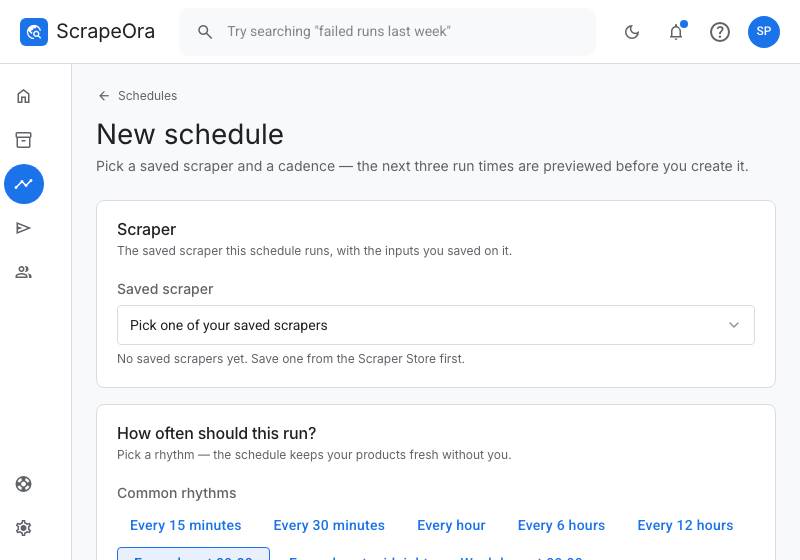
3. Create a schedule
Create a schedule that decides how often ScrapeOra re-checks your supplier, from every few hours to once a week. The schedule is what makes everything after this point hands-free.
4. Bind your store to the schedule
Attach your store to the schedule so its products are pushed automatically after each run. New items are added, changed items are updated, and you choose whether items the supplier drops are delisted or kept.
Each connection delivers after the runs of one schedule, so you can run different products on different cadences.
5. Turn on ordering and tracking
Switch on automatic ordering for suppliers that support it, which is live for CJdropshipping, Printful and Printify and in Beta for AliExpress. ScrapeOra then places each order you have been paid for and writes the tracking number back to Shopify or WooCommerce for your customer.
6. Watch the margin, not the busywork
Every product carries its supplier cost, your price and your margin, so you can see what each order and each store actually earns. You review results and winners, while the import, pricing, publishing and fulfilment run themselves.
Common problems and fixes
- Nothing pushed after a run
- Confirm the store is bound to the schedule that ran. A connection only delivers after the runs of the schedule it is attached to.
- A product I removed came back
- If your sync mode is additive, items are added and updated but never delisted. Switch that connection to full sync to also delist products the supplier has dropped.
- I want to stay hands-on for orders
- Leave automatic ordering off. A manual ordering checklist is available on every plan, and sync still keeps your prices and stock current.
Frequently asked questions
- Do I need to code any of this?
- No. Every step is a setting in the dashboard: save a key, connect a store, set a rule, pick a schedule.
- How much of this is really automatic?
- After setup, importing, pricing, publishing, price and stock sync, and order fulfilment all run on your schedule. You step in only to add new suppliers or change your rules.
- Can I automate more than one store?
- Yes. You can publish one catalogue to several stores and run each on its own schedule.