How to keep supplier prices and stock synced automatically
To keep supplier prices and stock synced automatically, put your imported products on a schedule and choose how often ScrapeOra re-checks the supplier. On each run it refreshes cost and stock, applies your pricing rule, and updates your store, so your listings never show a stale price or sell something that is out of stock.
This guide covers the schedule, the sync modes and the guards that protect your margin.
What you need
- A ScrapeOra account with at least one supplier connected.
- Products already imported and a store connected.
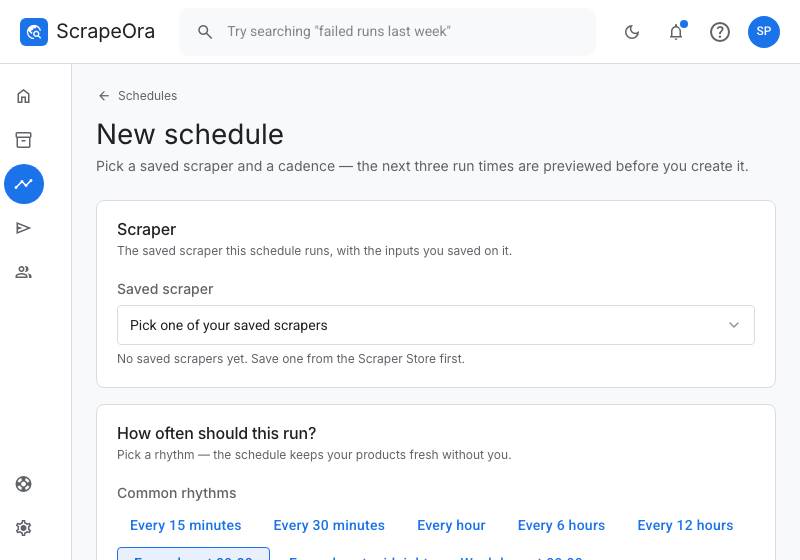
1. Create a schedule for how often to check
Create a schedule that sets how often ScrapeOra re-reads your supplier, from every few hours to once a week. Faster suppliers and fast-moving stock deserve a shorter interval; a stable catalogue is fine on a daily or weekly check.
2. Choose a sync mode
Pick how each run should behave for the connection:
- Additive: add new products and update changed ones, but never delist.
- Full sync: also delist products the supplier has dropped, so your store matches the source.
- Price and stock only: update existing products and leave your own additions alone.
3. Protect your margin
Your pricing rule runs on every sync, so a supplier cost change flows straight into your selling price. Set a minimum price so a cheap variant can never underprice you, and switch on the guard that only ever raises prices if you do not want a supplier drop to cut your margin.
4. See what changed
After each run you can see exactly what changed: which prices moved, which items went out of stock, and which products were added or delisted. Nothing happens silently.
Common problems and fixes
- Prices are not updating
- Check the product is on a schedule and that the connection is bound to it. Sync only happens on the runs of a schedule the connection is attached to.
- A supplier price drop cut my margin
- Switch on the only-raise-prices guard, or set a minimum price in your rule, so a lower supplier cost never drags your selling price below your floor.
- Products I added by hand got delisted
- Use additive or price-and-stock-only mode for that connection. Full sync is the only mode that delists, and it delists what the supplier dropped.
Frequently asked questions
- How often can stock sync?
- As often as every few hours, or as rarely as once a week. You set the interval per schedule.
- Does sync change my product text?
- No. Sync refreshes cost, price and stock. Your titles and descriptions are left as they are unless you ask for a rewrite on import.
- What happens when a product sells out at the supplier?
- Its stock is set to zero on the next run so you stop selling it. In full sync mode a product the supplier removes entirely is delisted.