How to connect CJdropshipping to WooCommerce
To connect CJdropshipping to WooCommerce, save your CJdropshipping API key in ScrapeOra, connect your WooCommerce store with a REST API key, import the products you want, and publish them with your pricing applied. ScrapeOra then keeps prices and stock in sync and can place and track your CJ orders.
This guide covers the whole setup. It takes about fifteen minutes and needs no code.
What you need
- A ScrapeOra account. The free plan is enough to set this up.
- A CJdropshipping account with API access, so you can get your API key.
- A WooCommerce store on HTTPS where you can create a REST API key as an administrator.
1. Save your CJdropshipping API key
In CJdropshipping, open My CJ, then Authorization and API, and generate your API key. In ScrapeOra, open your saved keys and paste it in. The key is encrypted on arrival and never shown again.
2. Create a WooCommerce REST API key
In WordPress admin, go to WooCommerce, then Settings, Advanced, REST API, and choose Add key. Pick an administrator as the user, set Permissions to Read and Write, and generate the key. Keep the Consumer key, which starts with ck_, and the Consumer secret, which starts with cs_. WooCommerce shows the secret only once.
3. Connect your WooCommerce store
In ScrapeOra, open Add store and choose WooCommerce. Enter your store address over HTTPS, the Consumer key and the Consumer secret, then pick a schedule and connect.
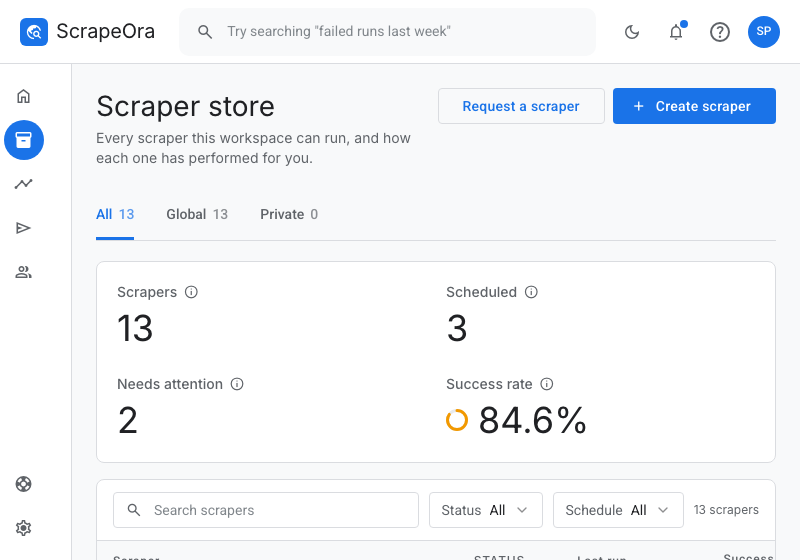
4. Import products from CJdropshipping
Paste a CJdropshipping product link to import one item, or a category link to import many. The full listing comes in with its title, description, photos, variants, SKUs, price and stock. Re-importing the same product updates it rather than creating a duplicate.
5. Set pricing, publish and keep in sync
Apply your pricing rule, publish to WooCommerce, and put the import on a schedule so prices and stock stay current. Turn on automatic ordering for CJdropshipping to have ScrapeOra place each paid order and write tracking back to WooCommerce.
Common problems and fixes
- WooCommerce returns 401 or rejects the key
- The REST API key needs Read and Write permission. Some hosts strip the authorization header, so ask your host to allow it, or connect over HTTPS only.
- WooCommerce returns Not found
- Check the address points at the WordPress site, and that permalinks are not set to Plain under Settings and Permalinks.
- A product imported with no price or variants
- You most likely pasted a category or search link rather than the product page. Open the product itself and import from its link.
Frequently asked questions
- Does the WooCommerce key expire?
- No. The REST API key stays valid until you revoke it in WooCommerce. If you regenerate it, reconnect the store in ScrapeOra with the new key.
- Can ScrapeOra place CJdropshipping orders for me?
- Yes. Automatic ordering is live for CJdropshipping, opt-in per store, and only ever sends an order you have already been paid for. Tracking is written back to WooCommerce.
- Will my WooCommerce stock stay accurate?
- Yes. On each scheduled run ScrapeOra refreshes cost and stock, and a product that sells out at the supplier is set to zero so you stop selling it.