How to import products to WooCommerce automatically
To import products to WooCommerce automatically, connect a supplier and your WooCommerce store once, set your pricing rule, and put the import on a schedule. From then on new products, price changes and stock updates flow into WooCommerce on their own, and you step in only when you want to.
This guide shows how to make the import hands-free.
What you need
- A ScrapeOra account.
- A supplier to import from, such as CJdropshipping, Printful or Printify, or a supplier store you import by link.
- A WooCommerce store on HTTPS with a REST API key (Read and Write).
1. Connect a supplier and your store
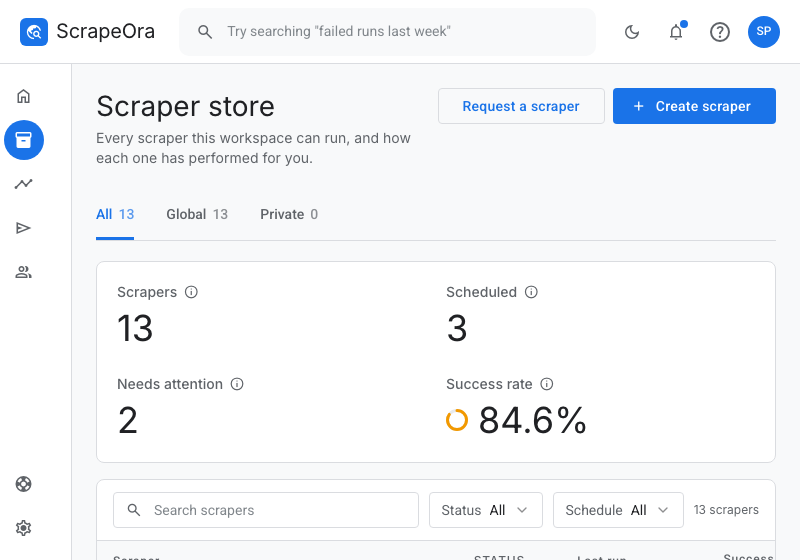
Save your supplier's API key in ScrapeOra, then open Add store, choose WooCommerce, and enter your store address, Consumer key and Consumer secret. This is the only manual part, and you do it once.
2. Set your pricing rule once
Define how your price is worked out from supplier cost: a markup, a minimum price, a price ending and a compare-at. The rule runs on every import and every sync, so you never price a product by hand.
3. Create a schedule
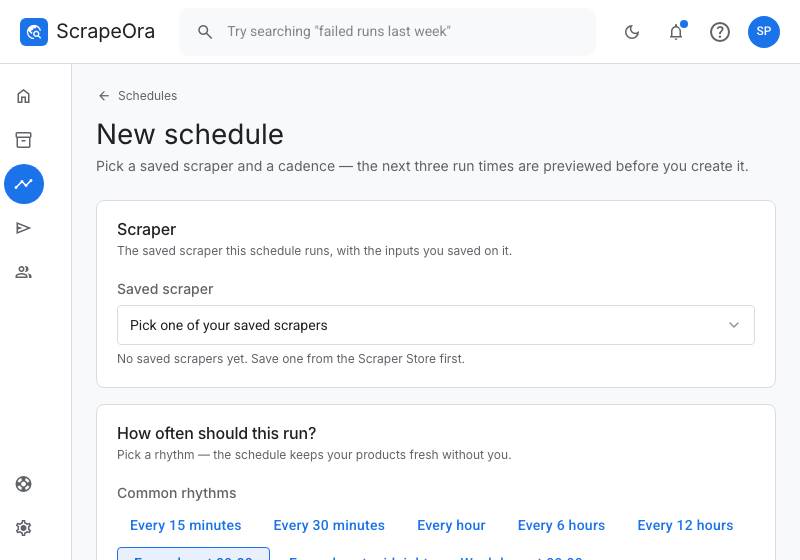
Create a schedule that decides how often ScrapeOra re-checks your supplier, from every few hours to once a week.
4. Bind the store and choose a sync mode
Attach the WooCommerce store to the schedule so products are pushed automatically. Choose a sync mode: additive adds and updates but never delists, full sync also sets vanished products to draft, and price and stock only updates those two fields.
Common problems and fixes
- Nothing imported after a run
- Confirm the store is bound to the schedule that ran. A connection only delivers after the runs of the schedule it is attached to.
- Products I edited got overwritten
- Use price and stock only mode to update just those fields and keep your edits. Additive keeps your added variants.
- WooCommerce returns 401
- The REST API key needs Read and Write permission, and some hosts strip the authorization header; ask your host to allow it.
Frequently asked questions
- Do I have to run imports by hand?
- No. After setup, new products and price and stock updates flow in on the schedule you set.
- Can I automate more than one store?
- Yes. Attach each store to a schedule; they can share one or run on different cadences.
- Will it create duplicates?
- No. Each product is matched to a stable source key, so re-importing updates the same product.