How to add products to a Facebook catalog automatically
To fill a Facebook catalog automatically, connect it to ScrapeOra with your catalog ID and a system-user access token, import your products, set a link to your own product pages, and publish. The same catalog powers your Facebook and Instagram shops, and ScrapeOra keeps it in sync on a schedule.
This guide covers the Meta setup and the ScrapeOra connection step by step.
What you need
- A ScrapeOra account. The free plan is enough to set this up.
- A Facebook catalog in Meta Commerce Manager, owned by your business.
- A system-user access token with the catalog_management permission, from your Meta Business settings.
- A product page for each item, since Facebook requires a link to your own page.
1. Find your catalog ID in Commerce Manager
In Meta Commerce Manager, open your catalog and go to its Settings. The catalog ID is the number shown there. Keep it to hand for the connection step.
2. Create a system-user token in Meta Business settings
In your Meta Business settings, create a system user and give it access to the catalog, then generate an access token with the catalog_management permission. This token lets ScrapeOra add and update products in the catalog.
Use a system-user token rather than a personal one. A personal token expires and would break the connection later.
3. Connect the catalog in ScrapeOra
Open Add store and choose Facebook. Paste the catalog ID and the access token, then set the product page link pattern, for example https://your-store.com/products/{handle}. ScrapeOra uses that pattern to give every product a link to your own page, which Facebook requires.
4. Import products and publish
Import products from your suppliers, apply your pricing, and publish them to the catalog. Each product goes in with its title, description, photos, variants and price, ready to show in your Facebook and Instagram shops.
5. Keep the catalog in sync
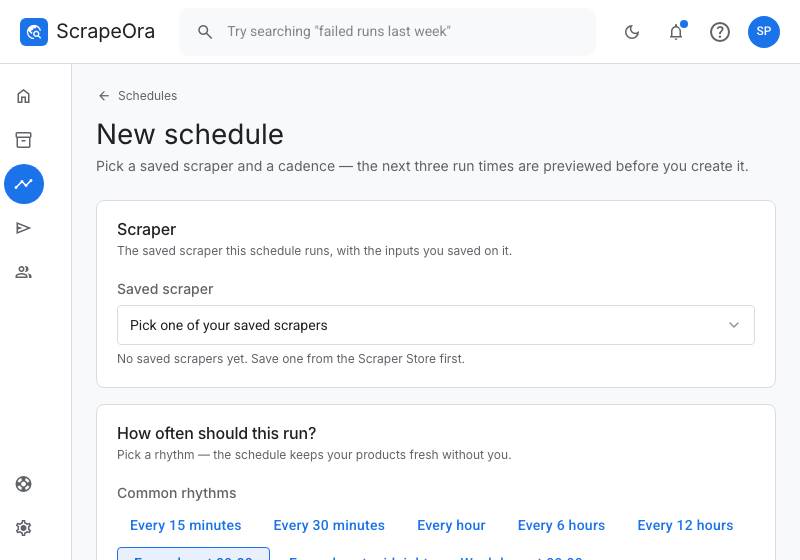
Put the catalog on a schedule so prices and stock stay current. When a supplier changes a price or sells out, the catalog is updated on the next run, so your shops never show a stale price.
Common problems and fixes
- Facebook did not accept the access token
- Create a new system-user token with the catalog_management permission and confirm the system user has access to this catalog in your Business settings.
- Facebook cannot find the catalog
- Check the catalog ID in Commerce Manager under the catalog's Settings. It is a number, not the catalog name.
- Products show as incomplete, missing a link
- Set the product page link pattern on the connection. Facebook needs a link to your own product page for every item before it will show them.
Frequently asked questions
- Does this cover Instagram as well?
- Yes. Facebook and Instagram shops are powered by the same catalog, so products you publish appear in both.
- Do I need a developer account?
- No. You only need a catalog in Commerce Manager and a system-user token from your Business settings. There is nothing to build.
- Where do the products come from?
- From the suppliers you import into ScrapeOra, such as CJdropshipping, Printful or Printify, or a supplier store you import by link.