How to connect Printful to WooCommerce
To connect Printful to WooCommerce, save a Printful token in ScrapeOra, connect your WooCommerce store with a REST API key, import your print-on-demand products, and publish them with your pricing applied. ScrapeOra then keeps the catalogue in sync and can place and track your orders.
This guide takes about ten minutes and needs no code.
What you need
- A ScrapeOra account. The free plan is enough to set this up.
- A Printful account with products, and a Printful token with the products and orders scopes.
- A WooCommerce store on HTTPS where you can create a REST API key.
1. Create a Printful token
In Printful, go to Developers, then Your tokens, and create a token with the products and orders scopes. Save it in ScrapeOra under your saved keys. It is encrypted on arrival and never shown again.
2. Create a WooCommerce REST API key
In WordPress admin, go to WooCommerce, then Settings, Advanced, REST API, and Add key. Choose an administrator, set Permissions to Read and Write, and generate the key. Keep the Consumer key (ck_) and Consumer secret (cs_); WooCommerce shows the secret only once.
3. Connect your WooCommerce store
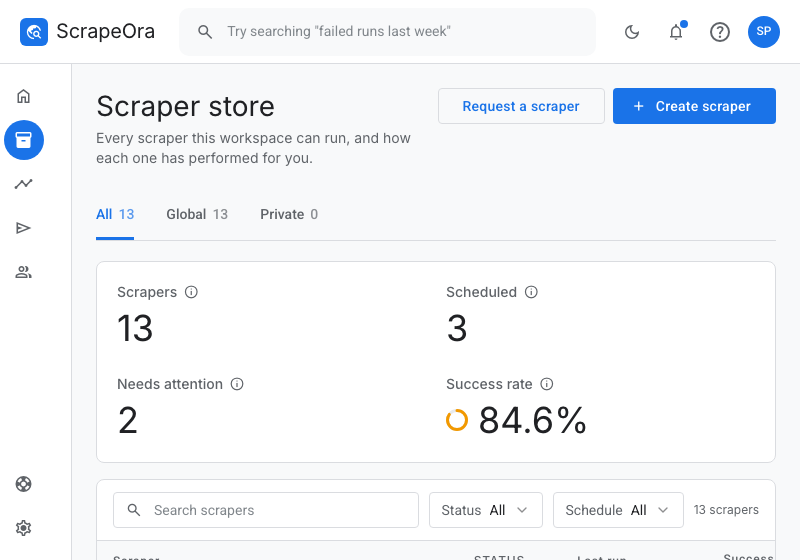
In ScrapeOra, open Add store and choose WooCommerce. Enter your store address over HTTPS, the Consumer key and the Consumer secret, then pick a schedule and connect.
4. Import, price and publish
Import your Printful products, apply a pricing rule so your retail price is set from the base cost, and publish to WooCommerce. Variants are kept available, since Printful makes items on demand.
5. Keep it in sync and fulfil orders
Put the import on a schedule so new designs and base-cost changes flow through. Turn on automatic ordering so each paid WooCommerce order is sent to Printful, with tracking written back to the order.
Common problems and fixes
- Printful returns 401
- Create a new token with the products and orders scopes and save the new one.
- WooCommerce returns 401
- The REST API key needs Read and Write permission; some hosts strip the authorization header, so ask your host to allow it.
- A product published without the right variants
- Confirm the variants imported from Printful before publishing. Variants you add by hand are kept on re-import.
Frequently asked questions
- Do I track stock for print-on-demand?
- No. Printful produces on demand, so ScrapeOra keeps variants available and syncs base-cost and catalogue changes instead.
- Can ScrapeOra fulfil WooCommerce orders through Printful?
- Yes. Automatic ordering is live for Printful, opt-in per store, and only sends an order you have already been paid for. Tracking is written back to WooCommerce.
- Can I sell the same designs on more than one store?
- Yes. Import once and publish the catalogue to several stores, each with its own schedule and pricing.